If your Weebly website feels a bit static or outdated, adding an Instagram feed can instantly change that. Instead of manually updating your site with new visuals, you can automatically display fresh, engaging content directly from your Instagram profile. It not only makes your website look more dynamic but also helps build trust and keeps visitors engaged for longer.
Whether you’re running an eCommerce store, a personal blog, or a business website, embedding an Instagram feed is one of the simplest ways to enhance your site’s appeal—without needing any coding skills. In this beginner guide, we’ll walk you through everything you need to know, step by step.
Why You Should Add Instagram Feed to Your Weebly Website
Let’s be real—people trust people more than brands. That’s where Instagram content shines. By showcasing real posts, customer experiences, and behind-the-scenes moments, you create a more authentic connection with your audience.
Here’s what you gain:
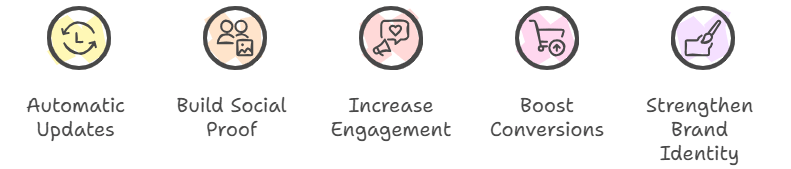
1. Keep Your Website Fresh Automatically
Every time you post on Instagram, your website updates too. No extra effort needed.
2. Build Social Proof
Displaying real customer photos and interactions increases credibility and trust.
3. Increase Engagement
Visitors are more likely to stay longer when your website has interactive, visual content.
4. Boost Conversions
When people see your products or services in action, they’re more likely to take action.
5. Strengthen Brand Identity
A consistent Instagram feed helps reinforce your brand voice and aesthetics.
Different Ways to Add Instagram Feed to Weebly
There are two main approaches you can take:
Method 1: Instagram’s Default Embed Option
Instagram allows you to embed individual posts by copying the embed code from a specific post. While this works fine for showcasing one or two posts, it has limitations:
- No automatic updates
- No customization options
- Not suitable for full feeds
This method is best for quick, one-off use cases.
Method 2: Using a Social Media Aggregator Tool (Best Option)
Third-party Instagram Feed Widget Tools like Taggbox, Tagembed, and similar platforms are designed to help you create and embed a full Instagram feed effortlessly.
These tools offer:
- Automatic content updates
- Custom layouts and designs
- Moderation features
- Mobile responsiveness
- Advanced features like shoppable feeds
For most users, this is the easiest and most effective solution.
Step-by-Step Guide to Add Instagram Feed to Weebly
Let’s break it down into simple steps:
Step 1: Sign Up for a Tool
Start by choosing a reliable Instagram feed tool. Create an account on the platform of your choice.
Step 2: Create Your Instagram Feed
Once inside the dashboard:
- Select Instagram as your source
- Choose how you want to collect content (hashtags, handle, mentions, tagged posts, etc.)
- The tool will automatically fetch your Instagram stories, posts or reels
Step 3: Moderate Your Content
Most tools allow you to filter your content. This is useful if you want to:
- Remove irrelevant posts
- Highlight only high-quality content
- Keep your feed clean and professional
Step 4: Customize the Feed Design
This is where you make your feed match your website’s look and feel.
You can:
- Choose layouts like grid, carousel, or slider
- Adjust colors, fonts, and spacing
- Enable/disable captions, likes, and comments
- Add hover effects or animations
Step 5: Generate the Embed Code
Once your feed is ready:
- Click on the “Publish” button
- Select Weebly as your platform
- Copy the generated embed code
Step 6: Add Instagram Feed to Your Weebly Website
Now head over to your Weebly dashboard:
- Open the page where you want the feed
- Drag and drop the “Embed Code” element
- Paste your code into the box
- Save and publish your website
Your Instagram feed will now be live and automatically updated.
Pro Tip: Make Your Feed More Powerful
If you want to go beyond just displaying posts, using a Weebly Instagram widget can significantly improve your results. It allows you to turn your Instagram content into a more interactive experience by enabling features like clickable posts, product tagging, and better visual layouts that align perfectly with your website design.
Best Practices for Embedding Instagram Feed
To get the most out of your Instagram integration, keep these tips in mind:
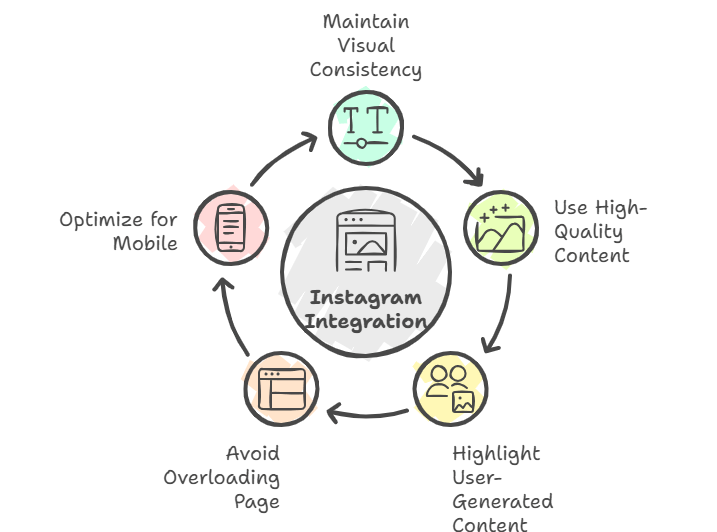
Keep It Visually Consistent
Make sure your Instagram feed aligns with your website’s design and branding.
Use High-Quality Content
Blurry or low-quality images can hurt your website’s appearance.
Highlight User-Generated Content
Showcasing customer photos builds trust and authenticity.
Don’t Overload Your Page
Too many posts can slow down your website. Keep it clean and balanced.
Optimize for Mobile
Most visitors will view your site on mobile, so ensure your feed looks great on all devices.
Common Mistakes to Avoid
Even though the process is simple, there are a few things you should watch out for:
- Using outdated or irrelevant Instagram posts
- Ignoring feed customization
- Embedding too many widgets on the same page
- Not testing responsiveness on different devices
- Forgetting to moderate content
Final Thoughts
Adding an Instagram feed to your Weebly website is one of the easiest ways to make your site more engaging, trustworthy, and visually appealing. It bridges the gap between your social media presence and your website, creating a seamless experience for your visitors.
With just a few simple steps and the right tool, you can transform your static website into a dynamic content hub that updates itself automatically. And once you see the impact on engagement and conversions, you’ll wonder why you didn’t do it sooner.


Leave a comment